1. Turn On Download Discovery
Click 📡 Discover in the toolbar. When it turns green, VELOCE is locally mapping downloadable page assets on every page. The status bar at the bottom confirms discovery is active. This is the first thing you should do — without it, downloadable content won't be found.
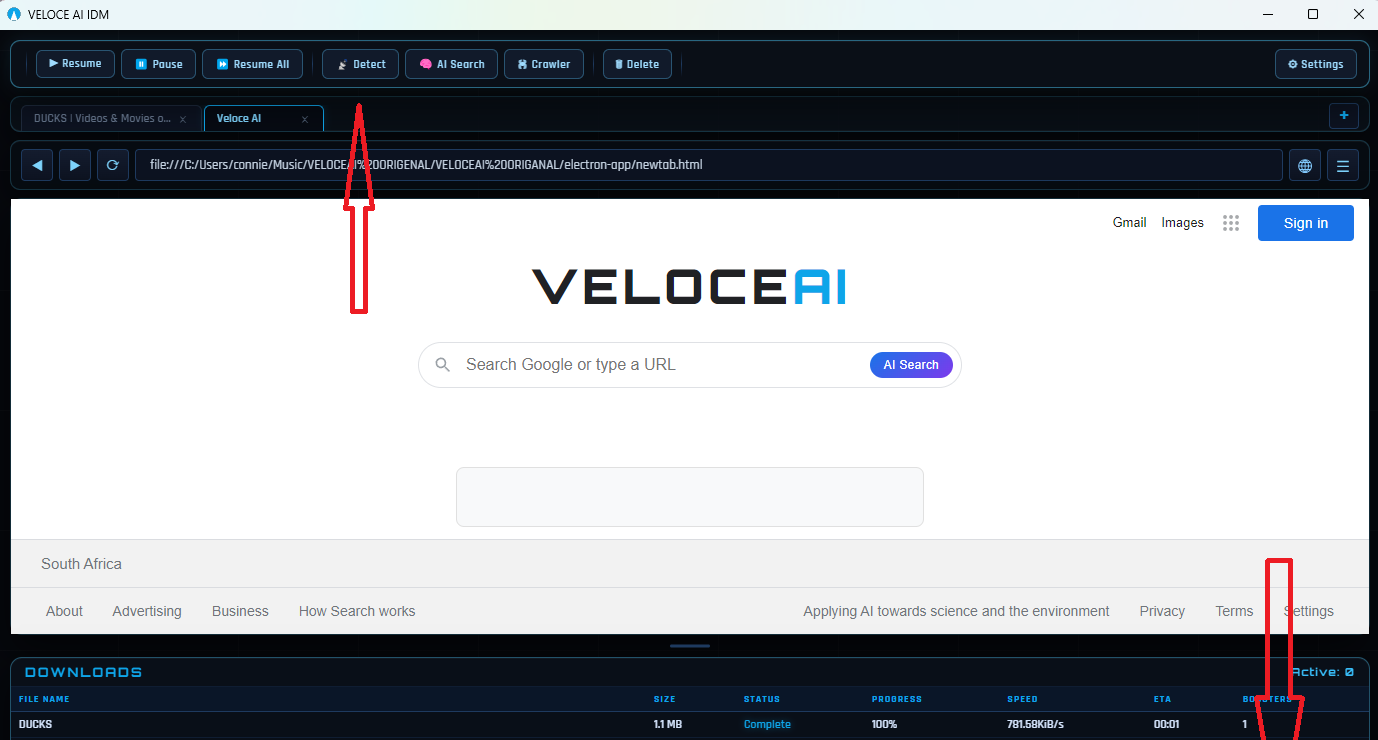
2. Browse to Any Site
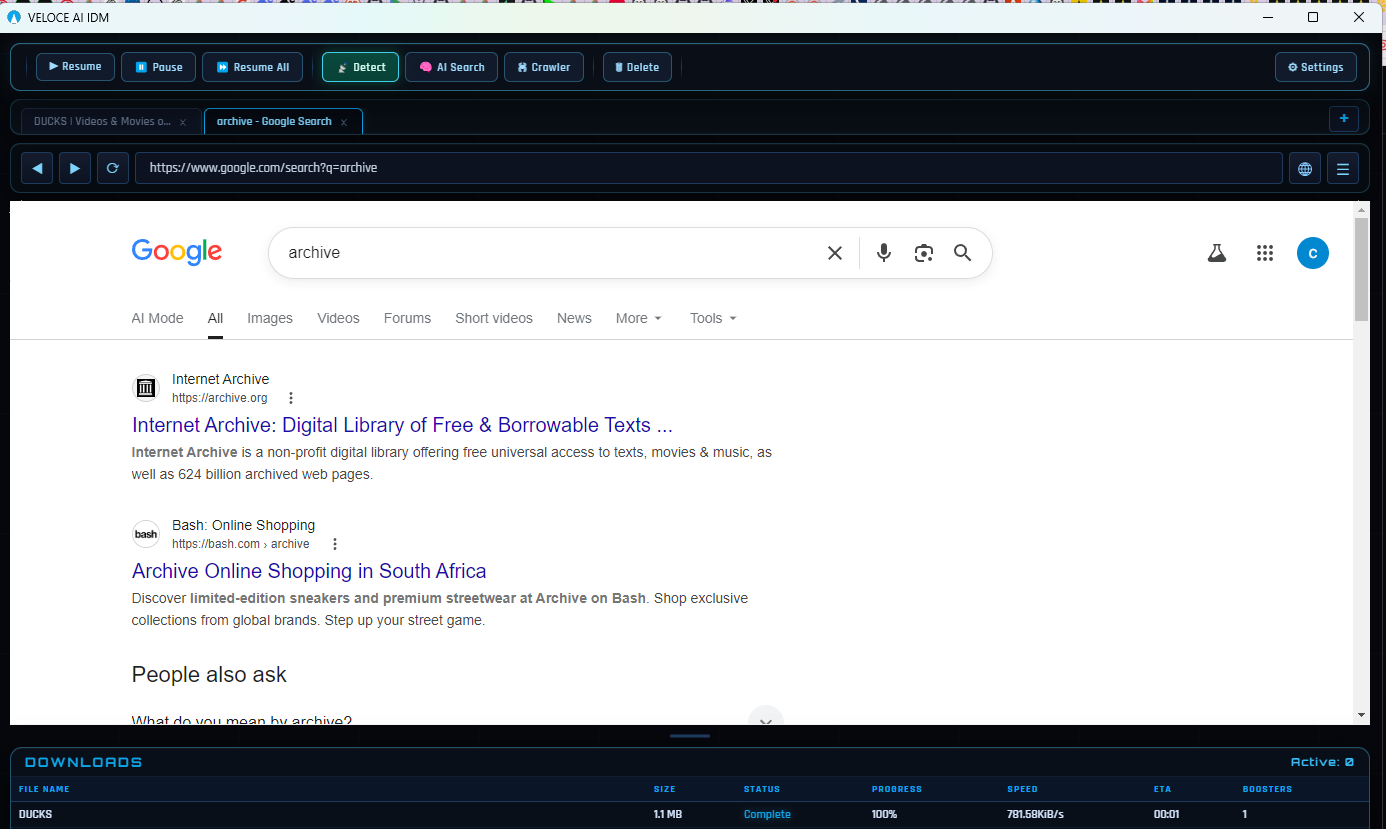
VELOCE AI includes a full Chromium browser. Type any URL in the address bar and browse just like Chrome or Edge. With download discovery on, VELOCE watches for downloadable content on every page using local page analysis.
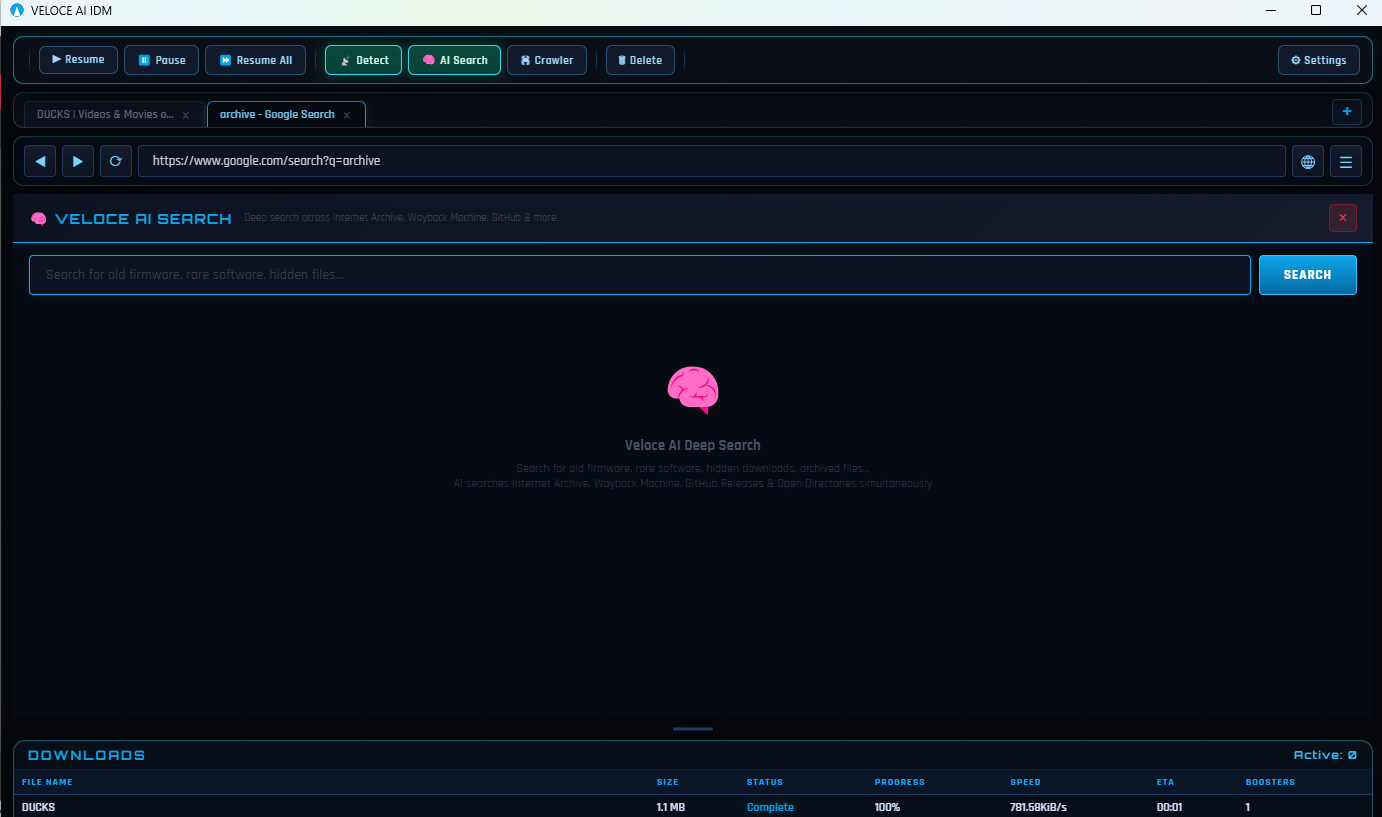
3. AI File Finder
Click 🧠 AI Search in the toolbar. Type what you're looking for — legacy archives, developer binaries, or public data repositories. VELOCE searches across public archives, code repositories, indexed web repositories, and its own learned database of download links. Results appear as clickable links that open directly in the browser.
4. Optimize Your Speeds
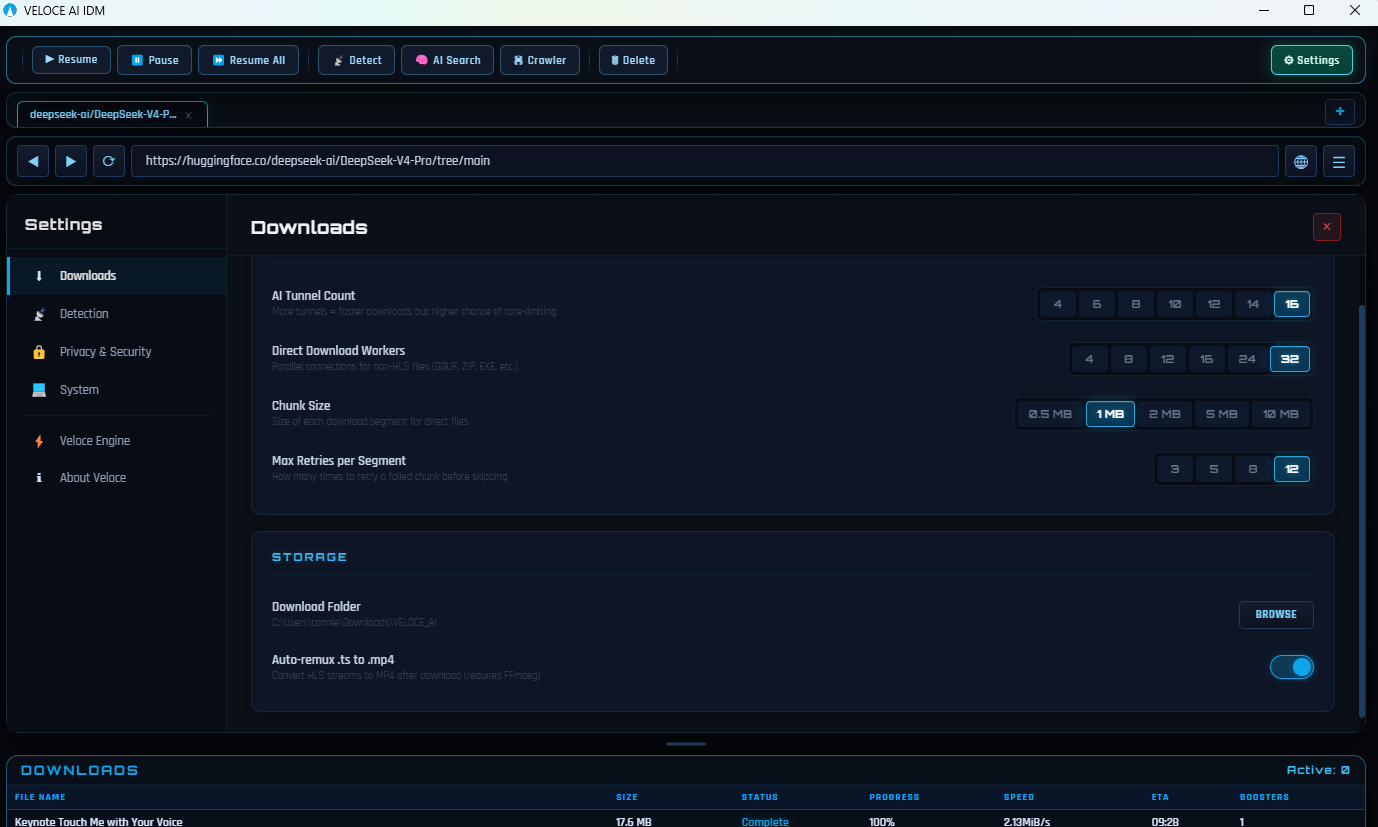
Open ⚙ Settings → Veloce Engine to tune performance:
- AI Tunnel Count — More tunnels = faster downloads. Start at 10, increase if your connection can handle it.
- Direct Download Workers — For standard files. Start at 10, increase for faster connections.
- Chunk Size — 5 MB works well for most connections. Try 10 MB on fast internet.
- Retries — How many times to retry a failed chunk. Default is 5.
5. Source Discovery Engine
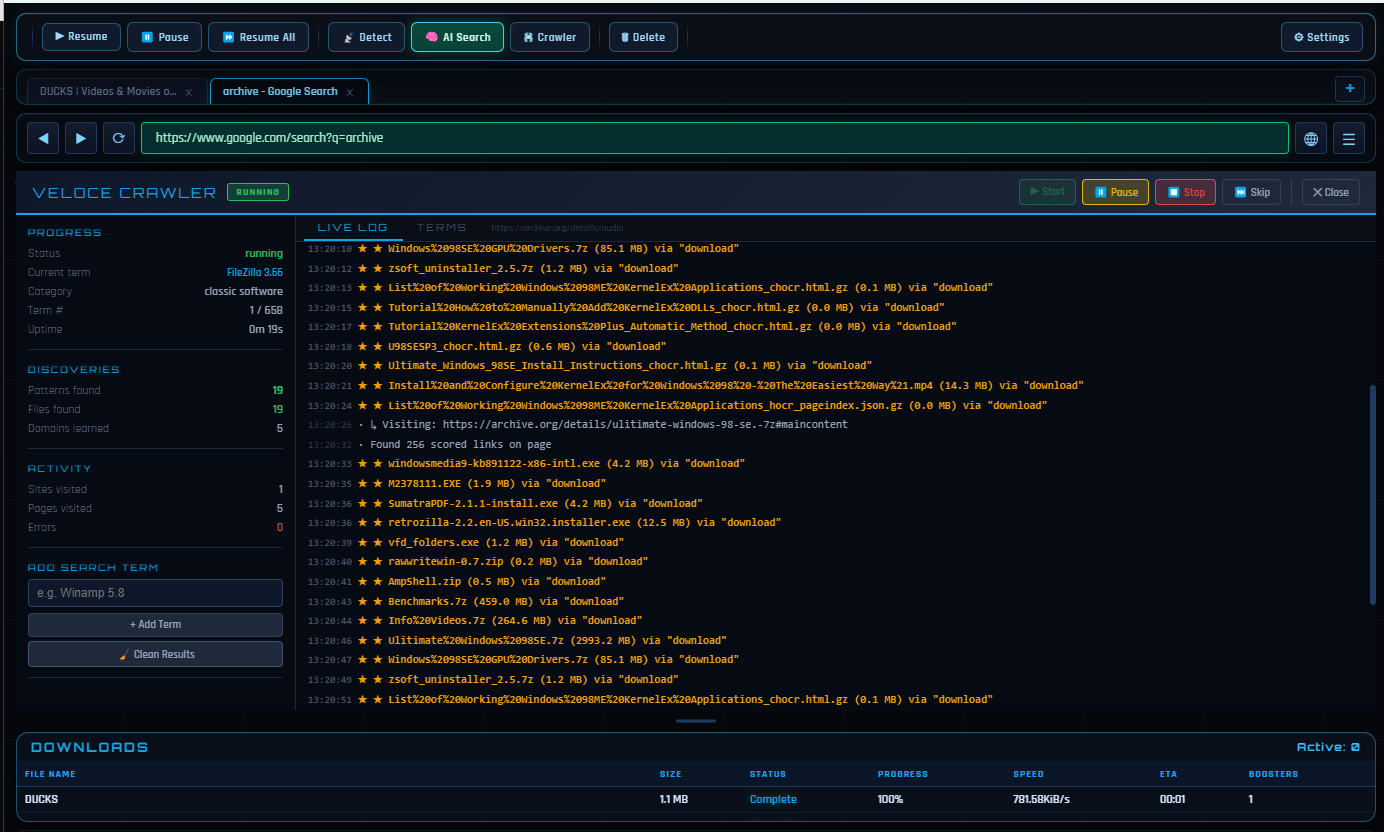
Click 🔍 Source Discovery Engine to let VELOCE automatically discover download sources across the web. Type in any search term — legacy archives, developer binaries, or public data repositories — and the engine searches public archives, repositories, indexed web repositories, and SourceForge, analyzing source directories for direct download paths to find hard-to-find resources. Every successful find is saved as a pattern, so the AI gets smarter the more it runs. Currently trained on 1,800+ patterns across multiple domains.
6. AI Download Acceleration
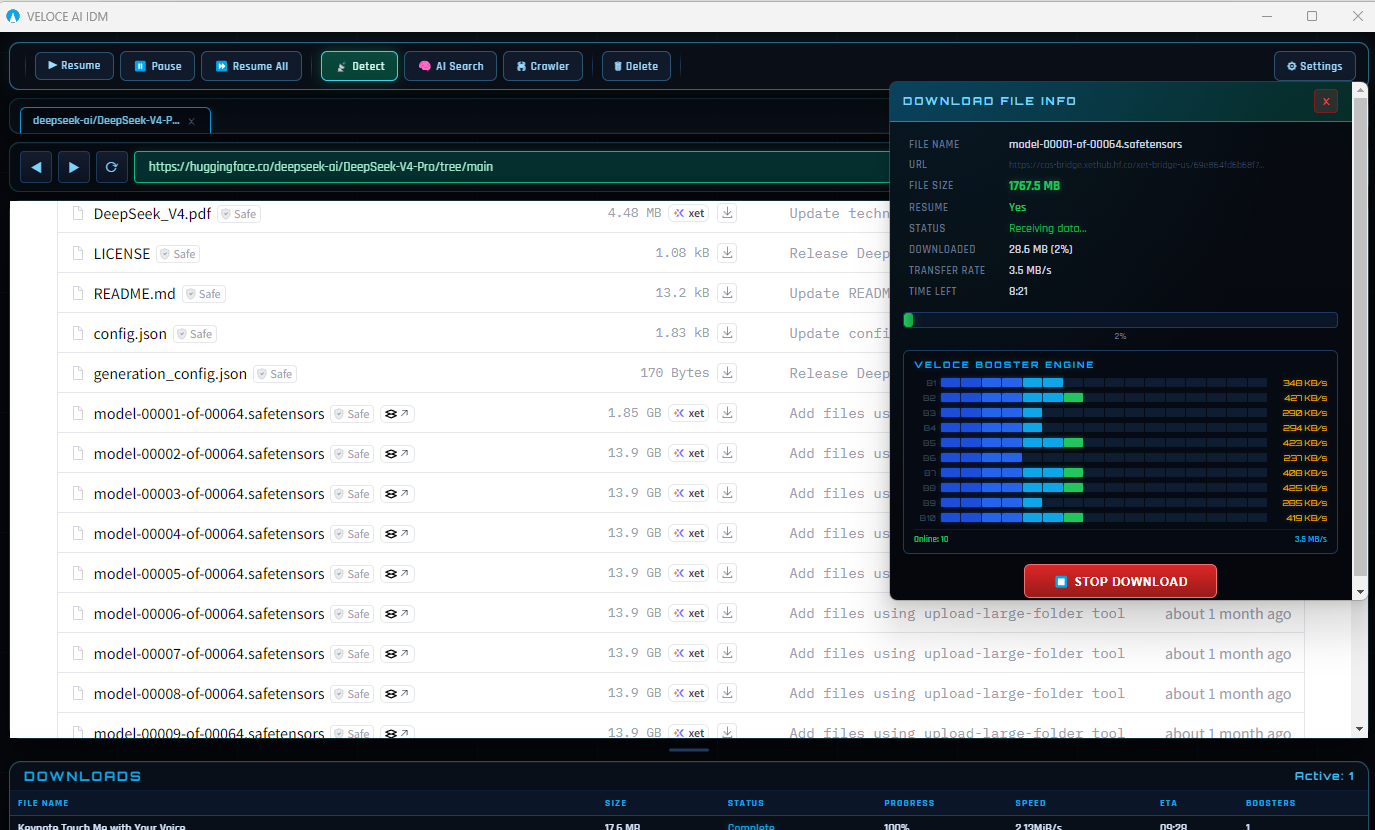
VELOCE uses intelligent multi-connection technology to accelerate every download. Instead of downloading a file in one slow connection, VELOCE splits it into segments and downloads them simultaneously — up to 32 parallel connections. Works on direct downloads, media files, and large files from any site including Hugging Face, GitHub, and Archive.org.
Quick Tips
Want to see how VELOCE stacks up? Read the full VELOCE AI vs IDM comparison →
- 💡 Drag the divider between the browser and downloads panel to resize.
- 💡 Right-click any download to pause, resume, or cancel.
- 💡 Downloads auto-save to
Downloads\VELOCE_AI— change this in Settings. - 💡 Use Ctrl+T to open a new tab.
- 💡 The source discovery engine (🔍) runs in the background learning new download sources.